I’ll start this out so we can get some of the likely FAQs out of the way…
-
Usernames - here, usernames are not ‘real names’, however real names are required at registration, your real name will be displayed more prominently on your posts. You can always quickly see someone’s real name (and all info about them, great for trust factor - what badges they had, warnings, etc) by clicking their username, that brings up their ‘card’. HACK: If you make your username the same as your real name (though without any spaces, as this software doesn’t allow it for usernames) your username will appear as your real name, i.e. Todd French (because my username is ToddFrench)
-
Signature - to keep a clean interface, signatures do not show on posts, but are also visible in the ‘card’ mentioned above. When you go into your profile you can add to your profile and when someone clicks your avatar, it’ll pop out a card with all the information.
-
Profile - upload your avatar, information etc by clicking your user avatar above, choose preferences, notifications, etc very similar to current model (what is called User Control Panel)
-
Themes - we have a number of theme options, you can choose what you like best, even have one for a ‘compact’ look that reduces white space everywhere, more emulates the spacing of the ‘classic’ site. Sam’s Minimal removes some information from the main thread pages (like views, activity, frequent posters). Click your avatar on the top right → preferences —> interface and the first option is Theme.
Here you can also change the text size on the same interface page. “Smallest” text will make the font size the same as the PHPBB wineberserkers page -
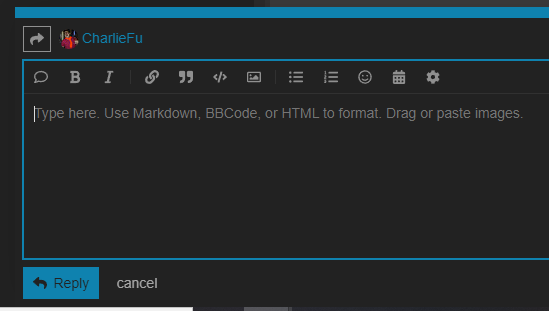
Quoting. You’ll notice that there is not a button for a “quote reply” where you automatically quote the whole of someone’s post. This is by design to declutter a wall of text being repeated over and over again. Discourse allows you to specifically quote. As you’re reading a post you can highlight the text you want to quote and a “quote” notification will pop up and generate a reply. You can keep scrolling and adding multiple quotes from multiple users very quickly and easily. BUT if you must block quote - hit reply to a post and on the top left of the screen is a speech bubble, it’ll capture all the replies and quote them.
-
Threaded replies - on desktop you will see replies appear in two ways. Your general chronological order and also a threaded reply menu that you can see. You can consume the thread as you always do on the prior WB iteration but the option is there to see threaded replies as well.
When threads get past 50 posts, the initial post will have a button below it that says “summarize post”. That’ll create a thread of threaded messages to easily track conversations within a long post. -
Muted users - you can mute users so you never have to read their posts, similar to the Ignore function on phpbb. Add them via your Preferences —> Users
-
Quick access to forums/categories. Hit the 3 lines next to your avatar on the top right of your screen. A quick link menu will pop up with all the categories you can jump to
-
Photos - you can drag and drop photos from your computer into the reply box. You can add photos with the picture frame on the reply box (middle top). You can also paste screenshots directly into the box. When dragging/dropping an image, if you hover over the image in the preview window on the right, it gives you options for displaying at 100%/75%/50% size as well
-
Another great tip - you’ll likely find that if you use ‘smaller’ in text choice (in preferences/interface, to get it sized more similarly to old WB) it will be slightly askew in your mobile view, so change your preferences/interface/text size in mobile to ‘normal’ as that’s sized perfectly in width on everything. Your mobile browser remembers the setting, so you can be ‘normal’ text size on mobile and ‘smaller’ on desktop. Best of both worlds.